Back to top

“浙大钉”是浙江大学为全校师生、员工量身定制的一站式数字化工作、学习和生活平台。它不仅是浙江大学最重要的官方移动应用入口,也是推进“智慧校园”建设的核心载体。

1、准备工作

下载安装

  • 手机客户端:前往学校网站,扫描网页中的二维码下载浙大钉;

  • 电脑客户端:前往钉钉网站,根据您的操作系统下载钉钉。

2、使用场景

立即开始视频会议

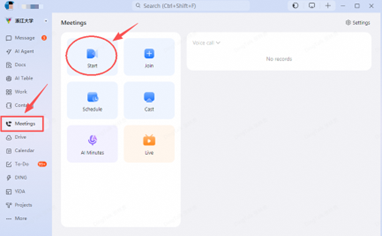
打开钉钉,在左侧找到“会议”,点击“开始”;

01.png

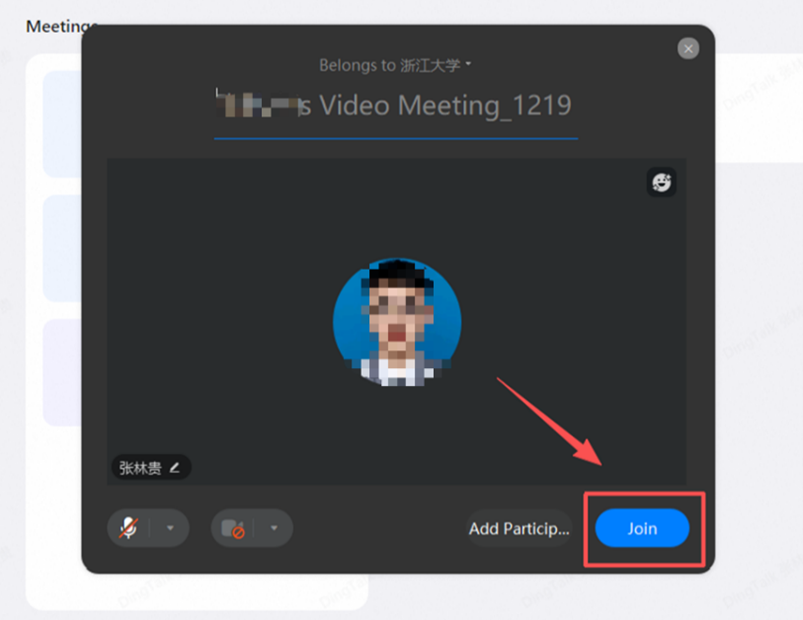
输入视频会议名称,点击“加入会议”;

02.png

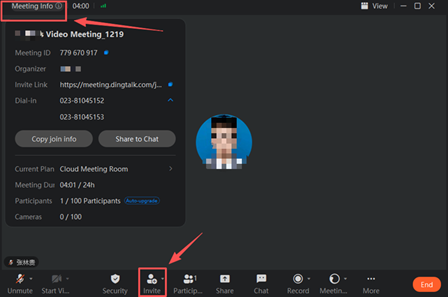
加入会议后,有3种方式邀请他人参加会议:

  • 通过复制“邀请链接”,将链接发给参会人;

  • 通过复制“会议ID”,将会议ID发给参会人;

  • 通过“邀请”,直接向参会人发送会议邀请。

03.png

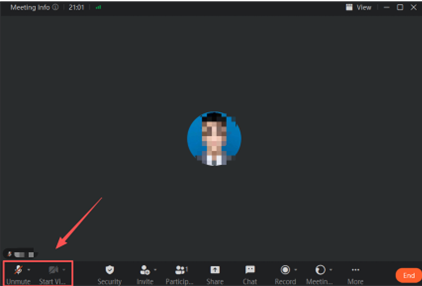
根据实际需要,可以开启或关闭摄像头和麦克风;

04.png

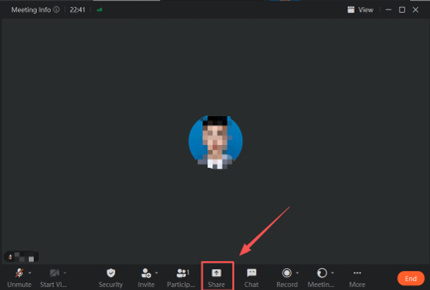
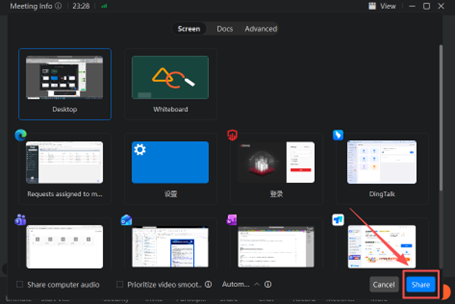
点击“共享”,选择需要共享的窗口,即可与参会人共享;

05.png    06.png

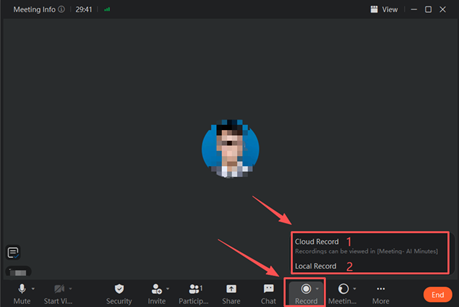
点击“录制”,可以选择“云录制”或“本地录制”:

  • 云录制,录制的文件会保存在钉钉上,有需求可以下载下来;

  • 本地录制,录制的文件会保存在当前的电脑上。

07.png

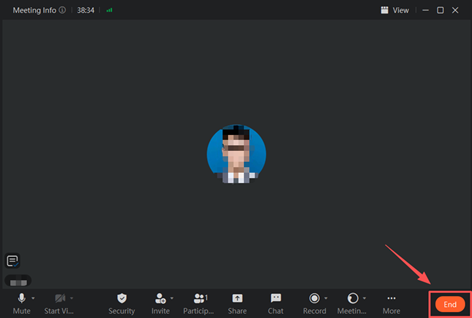
点击“结束”,结束会议。

08.png


预约视频会议

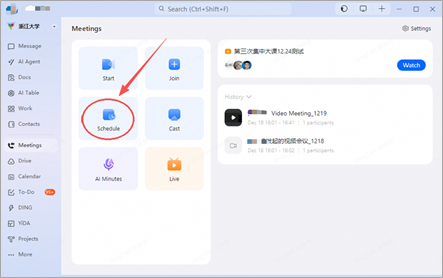
打开软件,在左侧找到“会议”,点击“预约”;

09.png

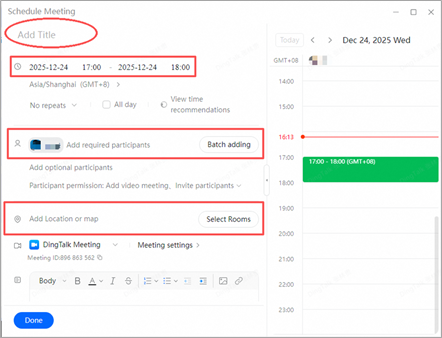
输入会议名称、时间、地点,添加参会人。
10.png

参加视频会议

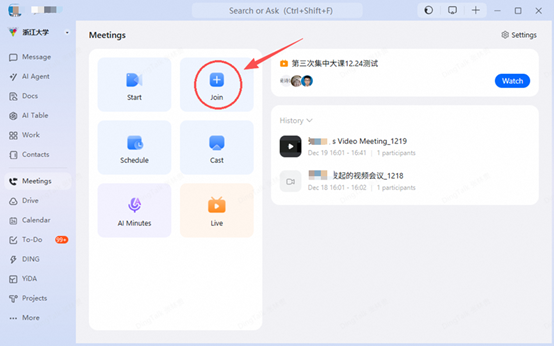
通过会议链接参会:主持人将会议链接发给参会人,点击会议链接,或者将链接复制到浏览器,即可参会;

11.png


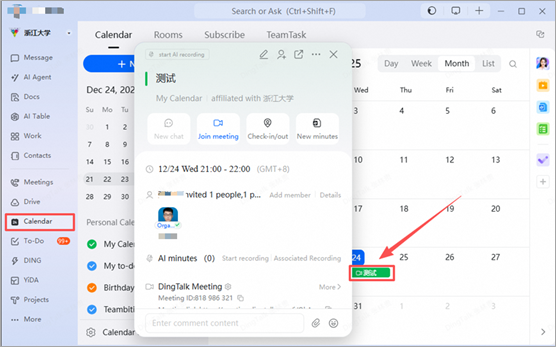
如果是预约会议,可以通过“日历”参会:在左侧“日历”,在日历中找到会议,点击会议参会。

12.png

1、Preparation

Download and install

  • Mobile client: Go to the school website, scan the QR code in the web page to download Zhejiang University Staple;

  • Computer client: Go to the DingTalk website and download DingTalk according to your operating system.


2、Usage scenarios

Start the video meeting immediately

Open DingTalk, find "Meeting" on the left side, and click "Start";

01.png

Enter the name of the video meeting and click "Join";

02.png

Once you've joined the meeting, there are 3 ways to invite participants to the meeting:

  • Copy the "Invite Link" and send it to the participants;

  • Copy the "Meeting ID" and send it to the participants;

  • Add paticipants by sending meeting invitations to paticipants directly.

03.png

The camera and microphone can be turned on or off according to your needs;

04.png

Click "Share" and select the window you want to share with others.

05.png    06.png

Click "Record", you can choose Cloud Record and Local Record:

  • Cloud record, the recordings will be saved on DingTalk, and can be viewed in [ Meeting-AI Minutes ]

  • Local record, the recorded file will be saved on the your computer.

07.png

Click "End" to end the meeting.

08.png


Make an appointment for a video meeting

Open DingTalk, find "Meeting" on the left side, and click "Schedule";

09.png

Enter the meeting name, time, and location, and add participants.
10.png


Participate in video meetings

Join the meeting through the meeting link: The host sends the meeting link to the participants, clicks the meeting link, or copies the link to the browser to participate in the meeting;


Join the meeting through the Meeting ID;

11.png


Provided that you have scheduled a meeting, you can join the meeting through Calendar: find "Meeting" in the calendar and click "Join meeting".

12.png

PeopleSoft is the academic management system of the international campus, ZJU. It undertakes the academic affairs of the entire life cycle of undergraduate teaching and learning on the campus and provides all-round academic services for teachers and students on the campus.


System Access:PeopleSoft 

User Manual

User Guide of Faculty Center.docx


Blackboard is a LMS system built in ZJU. it allows you to provide content to students in a central location, communicate with students quickly, and provide grades in an electronic format to students. Students can submit assignments electronically and work with a variety of built-in Web-based tools such as e-portfolios, wikis, and blogs. Students can also assess their peers and self-assess if projects are designed for

login address

http:\\learn.intl.zju.edu.cn


Using Blackboard


Training Video(watch it in order recommended):

1. Setup your personal information(optional)

2. Add Your Course Content(required)

3. SubmitStudentResults(required in the end of semester)


if you can't watch the videos above, please to watch it on web( watch it in order)

Blackboard brief instruction


2. set the blackboard language to English


3. Send email to member of class


4. Using Piazza


5. Group courses by semester


6. bulk download of assignment


7. Set OneNote Class Notebook in courses


8. Use WebAssign


9.turnitin_instruction.pptx


10.Blackboard Administrative Instruction


11.Blackboar Grade instruction(Web)(updating)


12. Assign a group name for each student


13. Use MediaSite in blackboard


14. Create Assignment


15. Add a TA to a Blackboard Course


16. ZJUI exam Instruction


17. Copy Course Content


18. Add and set Teams plugin in Blackboard courses


Ongoing Issue list:

1. Forum error message

Benefits for Faculty Using Blackboard

Central location of course documents.
You probably have a variety of course documents you provide to your students. Such documents include the syllabus, handouts, projects and assignments. By providing these documents in a central location, your students learn quickly to go to Blackboard to get everything they need for your class. Also, when students forget something that is in the syllabus, you can simply say, "Go to Blackboard and review the syllabus again." Having all of your course documents in a central location saves you and your students' time.

Central location for communicating with students.
With Blackboard you don't have to key in every students' email address. You simply go to the Communication button and you can select whether to email all students or select students from a list. Also, you can create announcements for your course. You may create an announcement to remind students of a due date or a test they will be taking next week. Whatever announcement you create, it will appear on the first page students see when they log into your class and with one click you can also email the announcement to all students. What a time saver.

Electronic submission of assignments.
Assignments can be submitted on Blackboard electronically. Faculty can then open the assignment, grade it, enter comments and corrections easily and quickly, and enter a grade for the student. This saves time and paper because the student or you do not have to print the assignment. To tell if a student has submitted an assignment, look in your grade book. An exclamation point notes that the student has submitted the assignment and a pad lock indicates that the student has saved the assignment, but it is not ready for grading.

Electronic tests and quizzes.
You can develop quizzes and tests students can take through Blackboard. When students complete an electronic test/quiz through Blackboard, it is automatically scored and placed in the grade book. This feature is a great time-saver for faculty, particularly in large classes. Blackboard time-stamps each test/quiz so you know whether the student took it within the allotted time. Tests/quizzes can also be designed to cut off at a certain time and date. Therefore, if students do not take the test/quiz at the allotted time, they cannot get access at a later time. Faculty can set up the test/quiz to provide detailed feedback on each question or simply the right/wrong answer for each question.

Built-in Web-based tools.
There are a variety of Web-based tools built into Blackboard. Some examples include e-portfolios, wikis, and blogs. These tools provide students an opportunity to meet project requirements in a variety of ways. Some of these tools also allow for student collaboration and the opportunity to edit the work of other.

ResearchPaper.zip


Blackboard Access Information  (INTL ID may be required to access)


浙江大学为校内师生提供RVPN服务,通过RVPN您可以在校外访问校内数字资源,以下是相关说明。

  • RVPN (aTrust)

    1、域名https://vpn.zju.edu.cn

    2、功能特点:支持Web、SSH、Telnet、远程桌面、FTP等多种业务,该平台需下载安装客户端及插件,适配Windows、Mac、Android、IOS、鸿蒙、麒麟、统信、Ubuntu等多种操作系统,支持INTL ID、上网账号、IDC运维账号登录,需要短信二次认证

    3、使用说明新版RVPN系统(aTrust客户端)使用教程

  • WebVPN

    1、域https://webvpn.zju.edu.cn

    2、功能特点:用于网页资源的访问服务,如:综合服务网、图书馆电子资源、各学院内部网站、OA系统等;该平台免插件、免客户端,适配Windows、Mac、Android、IOS等多操作系统。

    3、使用说明WebVPN使用教程

  • RVPN(EasyConnect)

    1、域名:https://rvpn.zju.edu.cn

    2、功能特点:该版本为旧版,建议大家使用新版客户端(aTrust),体验更稳定。2025年5月19日起,RVPN系统不再支持SSH、远程桌面、Telnet、FTP等协议。如需使用相关服务,请通过新版RVPN系统(aTrust)访问。

    3、使用说明旧版RVPN使用指南


Zhejiang University provides RVPN services for its faculty and students. Through RVPN, you can access the university's digital resources from outside the campus. Here are the relevant instructions:

  • RVPN(aTrust)
    1.Domain name: https://vpn.zju.edu.cn
    2.Features: Supports multiple services such as Web, SSH, Telnet, Remote Desktop, FTP, etc. This platform requires the installation of a client and plugins, and is compatible with various operating systems including Windows, Mac, Android, IOS, HarmonyOS, Kylin, UnionTech, and Ubuntu. It supports login with INTL ID, internet account, and IDC operation and maintenance account, and requires SMS secondary authentication.
    3.Instructions: Tutorial for the new version of RVPN system (aTrust client)

  • WebVPN
    1.Domain name:  https://webvpn.zju.edu.cn
    2.Features: Provides access to web resources such as the comprehensive service network, library electronic resources, internal websites of various colleges, and OA systems; this platform is plugin-free and client-free, and is compatible with multiple operating systems including Windows, Mac, Android, and IOS.
    3.Instructions: Tutorial for WebVPN

  • RVPN(EasyConnect)
    1.Domain name:  https://rvpn.zju.edu.cn
    2.Features: This is an outdated version. We recommend using the (aTrust) client for a more stable experience. Starting from May 19, 2025, the RVPN system will no longer support protocols such as SSH, Remote Desktop, Telnet, and FTP. If you need to use these services, please access them through the new version of RVPN system(aTrust).

    3.Instructions: Guide for the old version of RVPN


Pages

Subscribe to RSS - International Business School