ZJU DingTalk
1、Preparation
Download and install
Mobile client: Go to the school website, scan the QR code in the web page to download Zhejiang University Staple;
Computer client: Go to the DingTalk website and download DingTalk according to your operating system.
2、Usage scenarios
Start the video meeting immediately
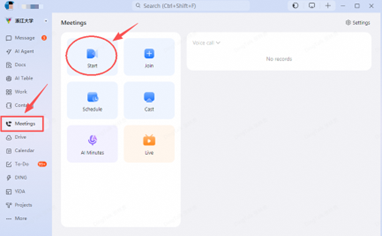
Open DingTalk, find "Meeting" on the left side, and click "Start";
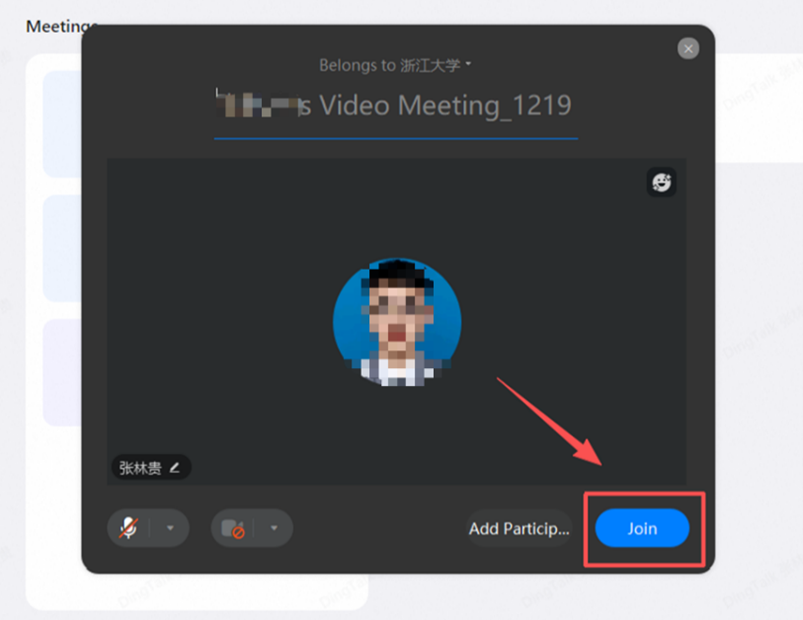
Enter the name of the video meeting and click "Join";
Once you've joined the meeting, there are 3 ways to invite participants to the meeting:
Copy the "Invite Link" and send it to the participants;
Copy the "Meeting ID" and send it to the participants;
Add paticipants by sending meeting invitations to paticipants directly.
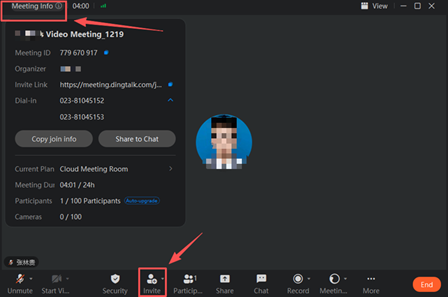
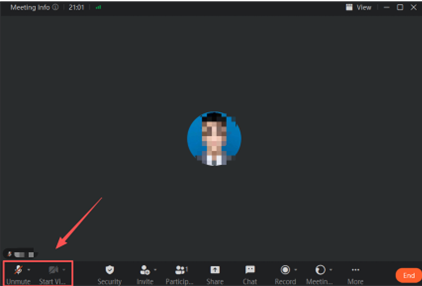
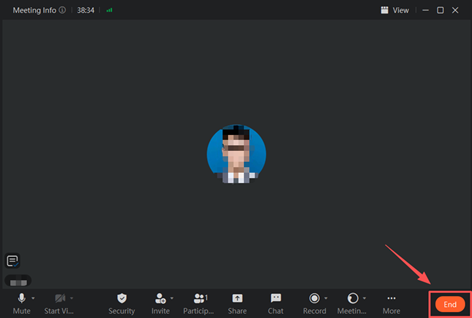
The camera and microphone can be turned on or off according to your needs;
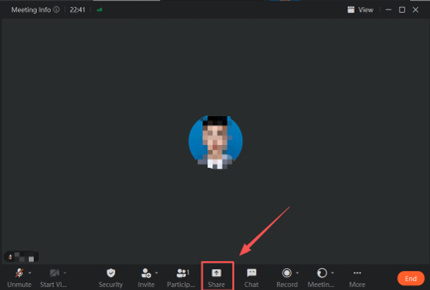
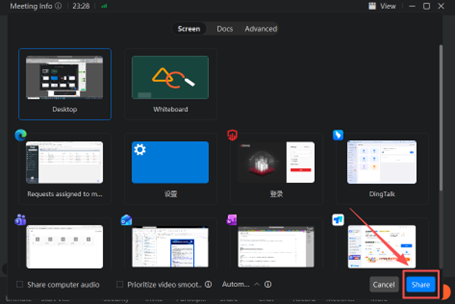
Click "Share" and select the window you want to share with others.
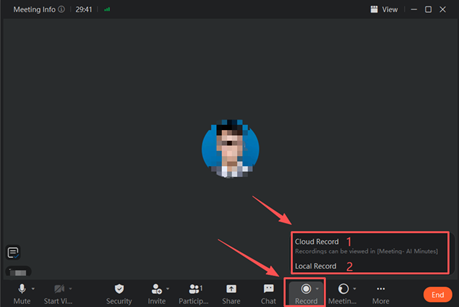
Click "Record", you can choose Cloud Record and Local Record:
Cloud record, the recordings will be saved on DingTalk, and can be viewed in [ Meeting-AI Minutes ]
Local record, the recorded file will be saved on the your computer.
Click "End" to end the meeting.
Make an appointment for a video meeting
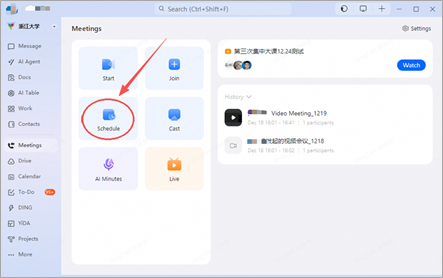
Open DingTalk, find "Meeting" on the left side, and click "Schedule";
Enter the meeting name, time, and location, and add participants.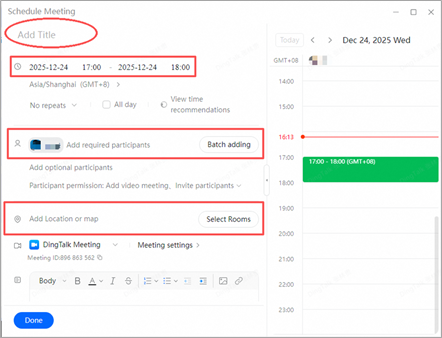
Participate in video meetings
Join the meeting through the meeting link: The host sends the meeting link to the participants, clicks the meeting link, or copies the link to the browser to participate in the meeting;
Join the meeting through the Meeting ID;
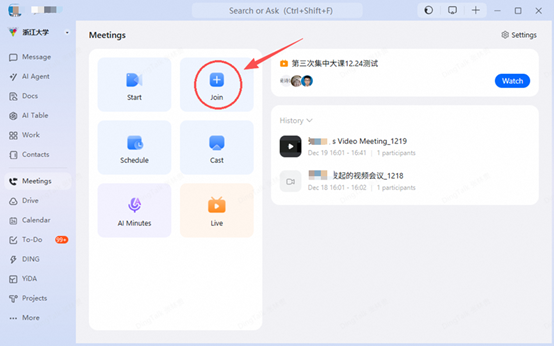
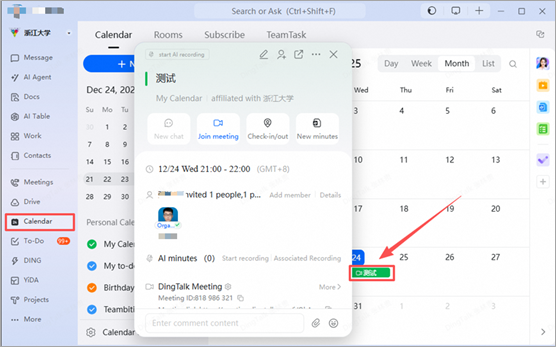
Provided that you have scheduled a meeting, you can join the meeting through Calendar: find "Meeting" in the calendar and click "Join meeting".