Teams
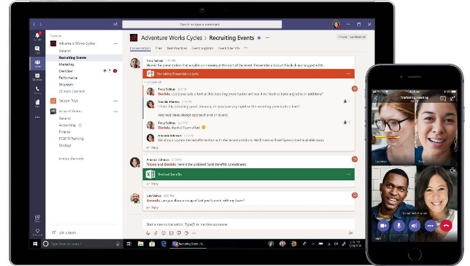
Teams is a online work and communication platform, support for online meeting, files collaboration, chating. Teams has clients for various devices, including PC and mobile. If you have problems while using, please contact ITS. Email: itservices@intl.zju.edu.cn Tel: 0571-87572669. Click here get more guide on using Teams.
1. Preparation
1.1 Download and Installation
- Step 1:Click here download Teams client for Windows.
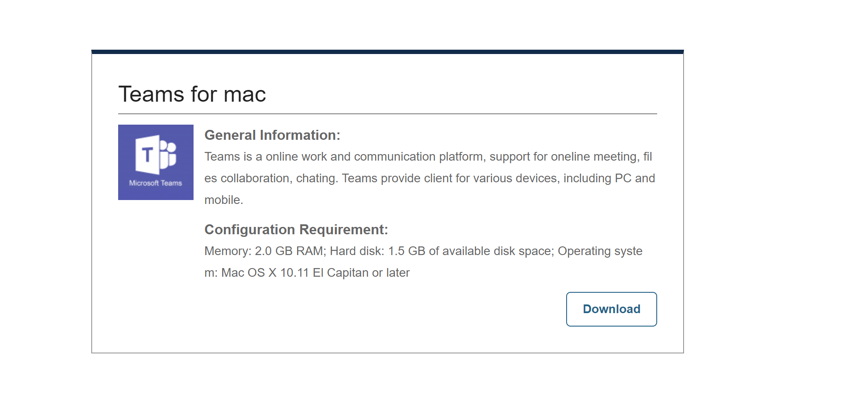
Step2:The Client will be automatically installed in Windows system. - Step 1:Click here donwload Teams client.
Step 2:Open installation package. And keep continue.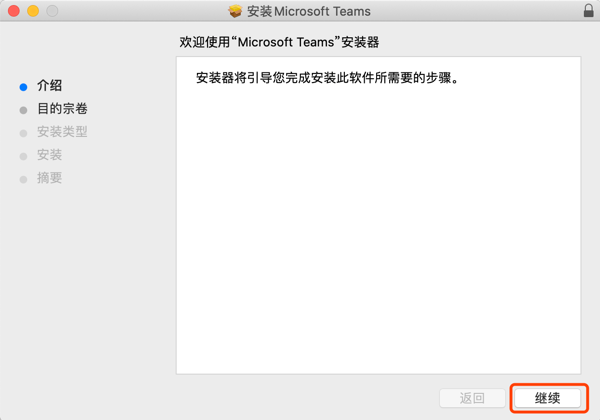
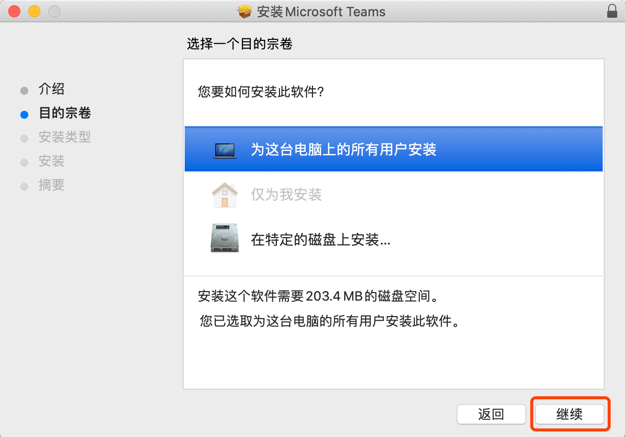

Step3:After successfully installation, close the window.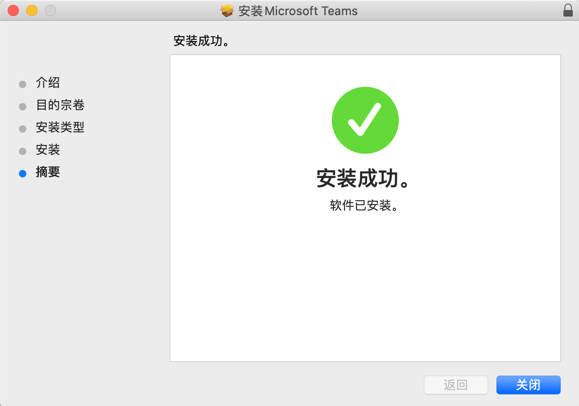
- Step 1:Click here to get mobile client in HUAWEI Application Market
Step 2:Click download and install it.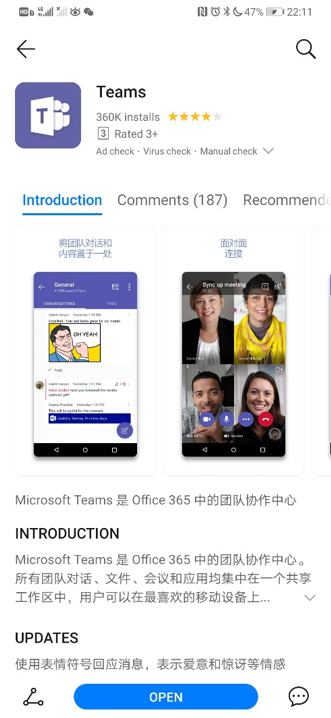
1.2 Login
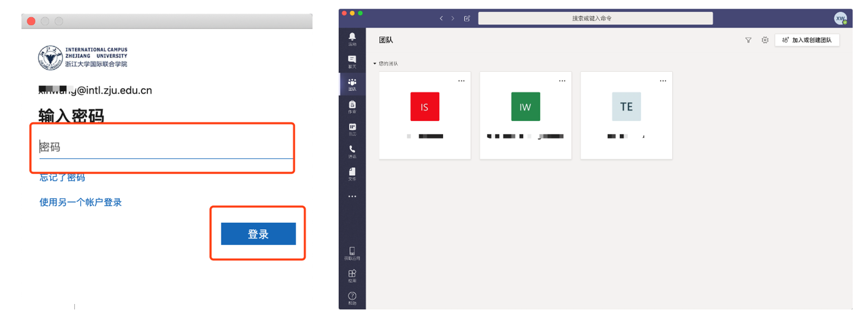
Use INTL ID to login, You could find your department team on ”Group”.
2. Senarios
Teams is campus officical online work platform.Teachers and students can communicate anytime and anywhere using real names in teams, such as instant messaging, group chat, video conference, files collaboration, etc.. Each department has established a team, and use channel to arrange files and notices.
2.1 Start the video conference immediately
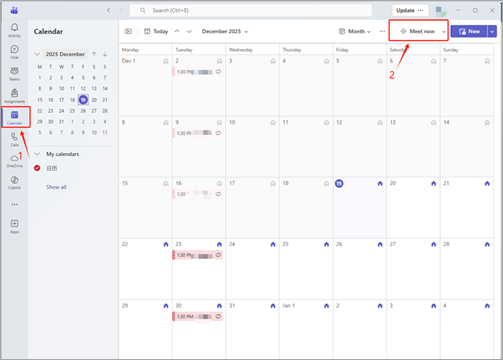
Open the software, find "Calendar" on the left side, and click "Meet Now";
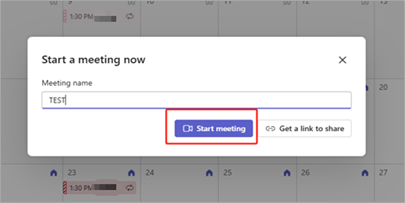
Enter the video meeting name and click "Start Meeting".
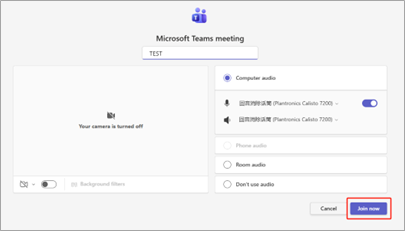
Click "Join Now";
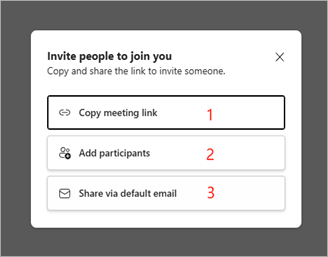
Once you join a meeting, there are 4 ways to invite paticipants to the meeting:
Copy meeting link and send it to the participants;
Provided that all paticipants have INTL ID, add paticipants by entering their INTL ID;
Share via default email, and send an email with the meeting link to participants;
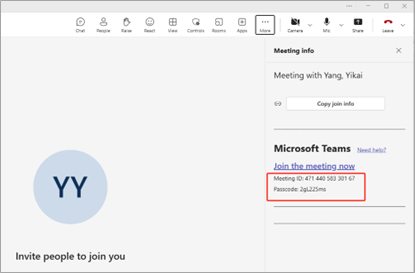
Find "Meeting Info", copy meeting ID and passcode and sent theto the participants

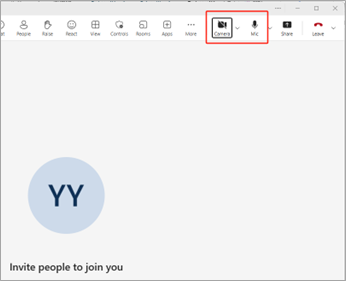
The camera and microphone can be turned on or off according to actual needs;
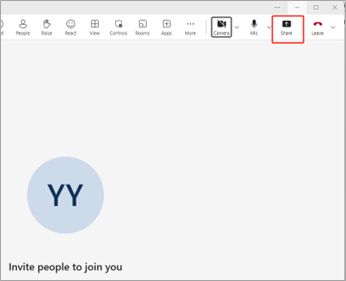
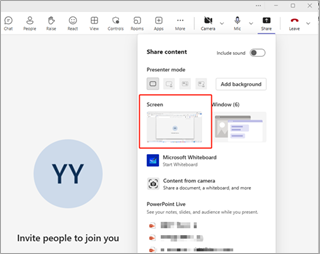
Click "Share" to share the computer screen or specific window with the participants.
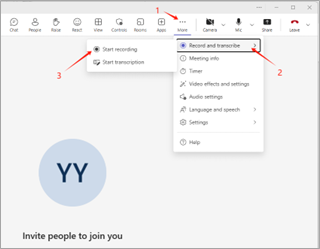
Click "More", find "Record abd transcribe", tap "Start Recording" and select the correct language;
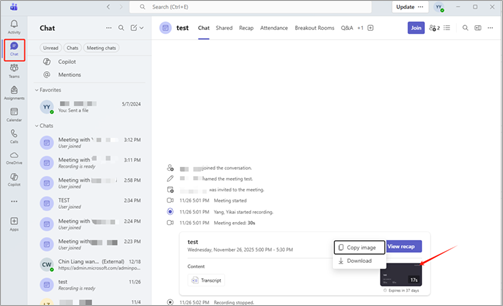
The recorded meeting file is saved in the "Chat" channel, click the link to download the video file;
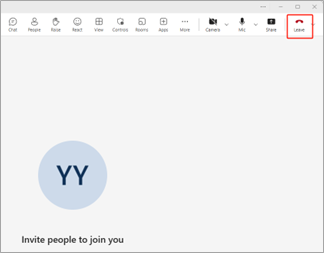
Click Leave to end the meeting.
2.2 Make an appointment for a video meeting
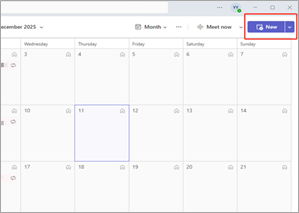
Open the software, find "Calendar" on the left side, and click "New";
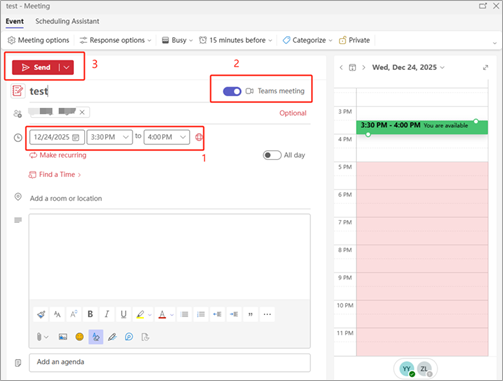
Enter the meeting time, open the Teams meeting button, and click Send to complete the meeting appointment.
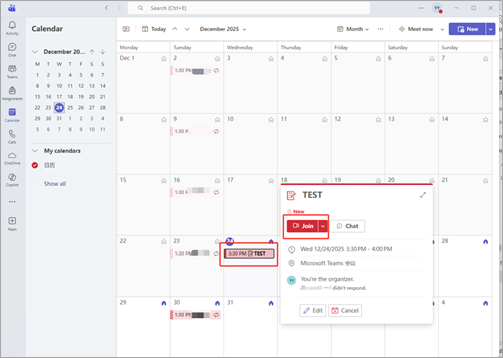
After the appointment is completed, the meeting will appear in the "Calendar", and you can click "Join" to join the meeting.
2.3 Participate in video meeting
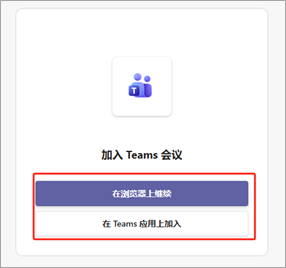
Participate through the meeting link: The host sends the meeting link to the participants, and the participants copy the link to the browser to participate in the meeting.
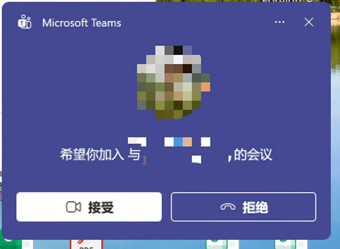
Invite participants by accepting the meeting: After the host adds participants, Teams will send the meeting invitation to the participants before the meeting starts, and click "Accept" to join the meeting.
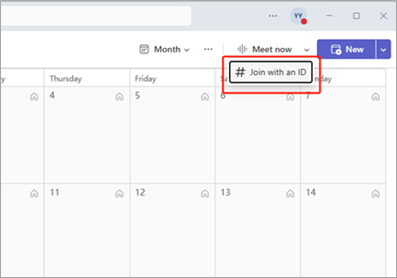
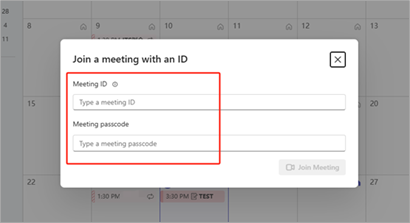
Join the meeting by meeting number: The host sends the meeting number and password to the participants, clicks the down arrow next to "Meet Now", clicks "Join the meeting with ID", and enters the meeting number and password to join the meeting.