
How to book meeting room by Office 365
This guide is about how to book public rooms, You can check these rooms’ availability in Office 365 since they are already imported into Office 365.
Steps are as follows:
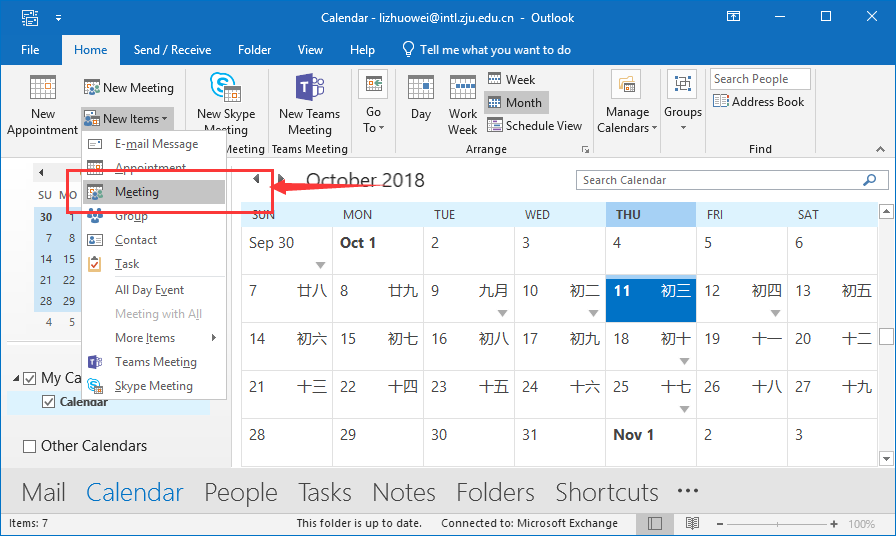
Step 1: Open Outlook, click New Items -> Meeting
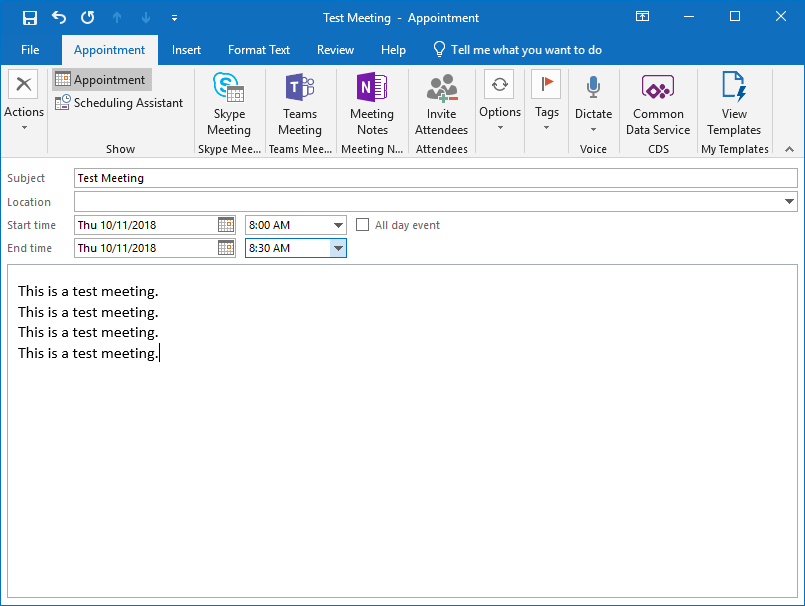
Step 2: Enter Start time, End time, Subject, and the message body.
Step 3: View and select the room and invite attendees.
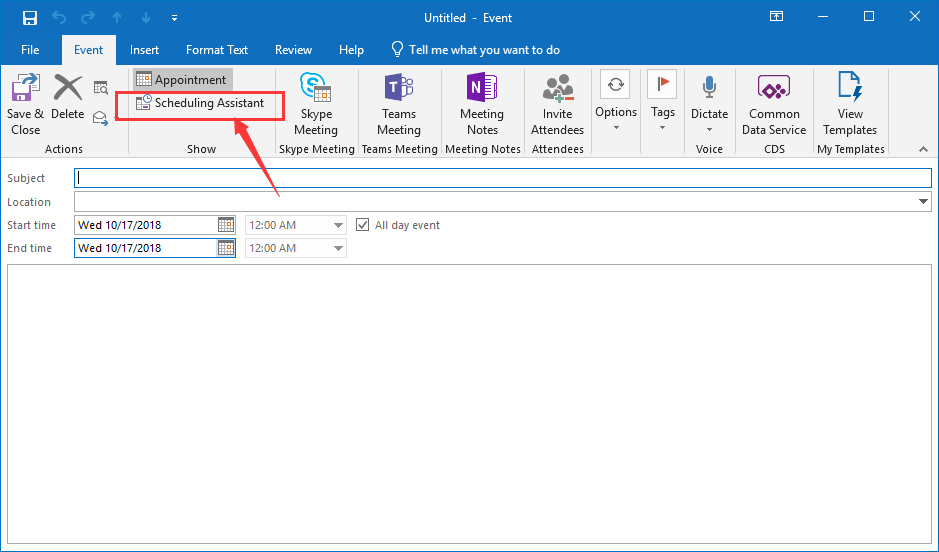
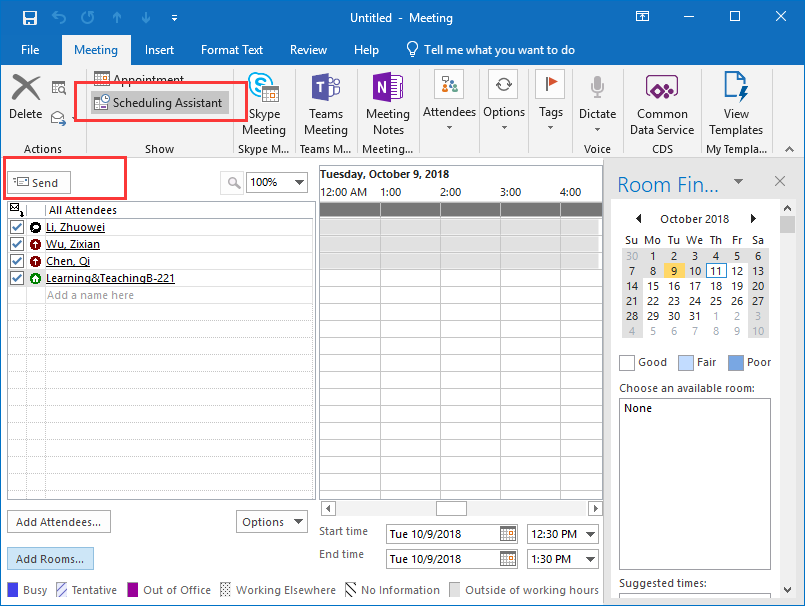
Click ‘Scheduling Assistant’
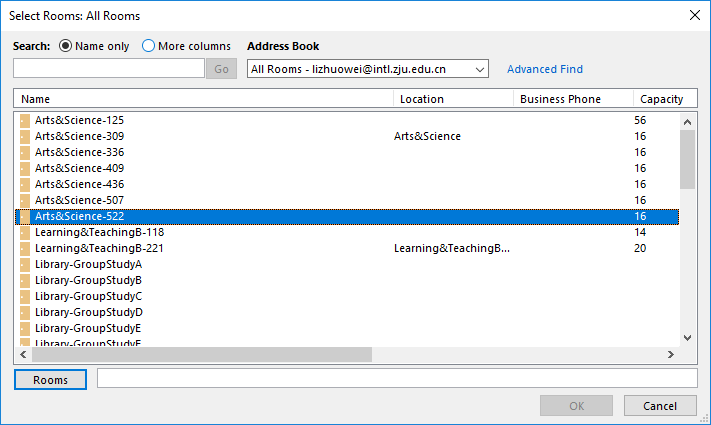
2. Select the room you want.
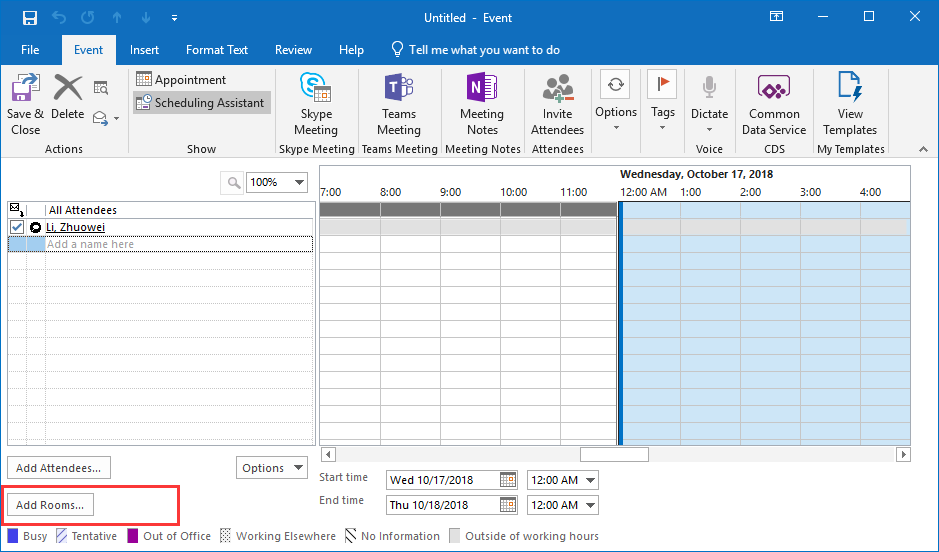
For example, to use Room 522 in Arts & Science Building, select ‘Arts&Science-522’ here.
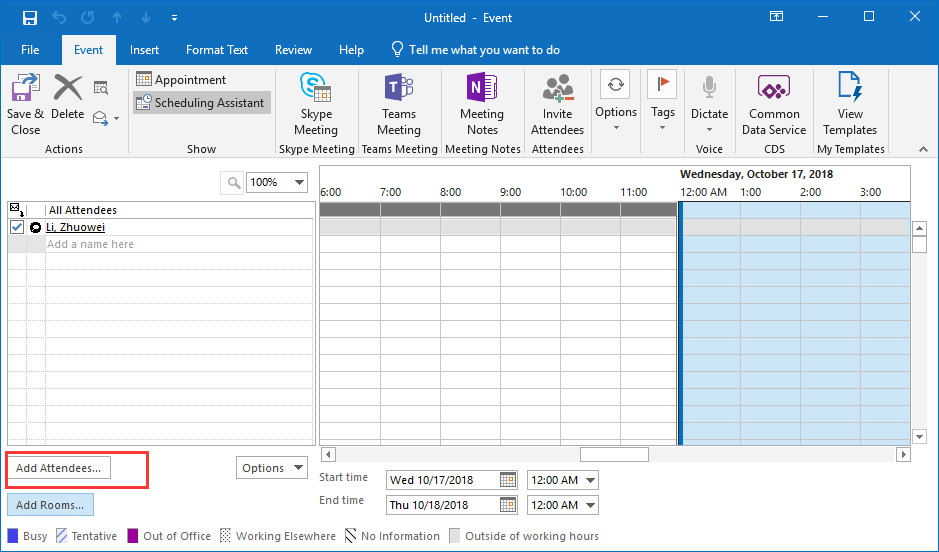
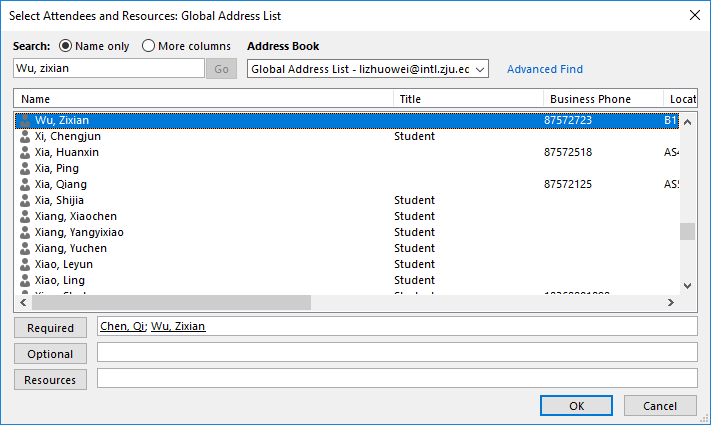
3. Click ‘Add Attendees’. In the dialog, add attendees you want to invite.
4. In the right-side calendar view, you can check the availability of people and room during the meeting time; by dragging the timeline, you can adjust the start and end time.
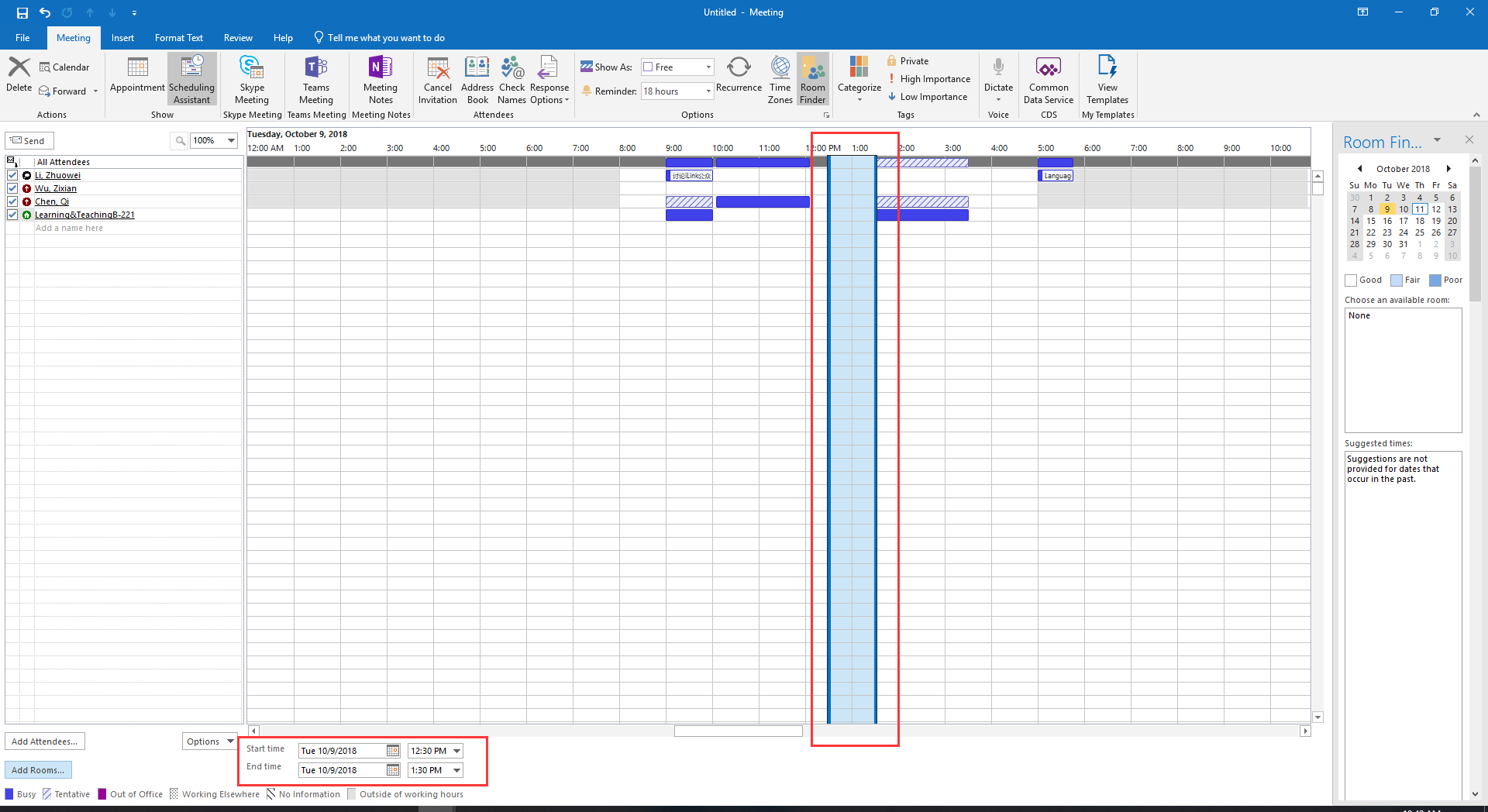
5.Click ‘Send’ (at the top-left). Or you can use ‘Scheduling Assistant’ to modify other fields, and then send the invitation.
Step 4: Confirm booking status
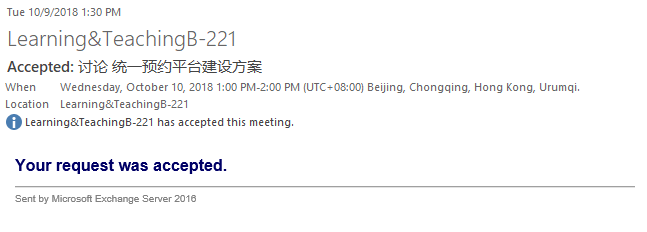
After sending the invitation, if the room booking succeeds, you will receive an email like this:
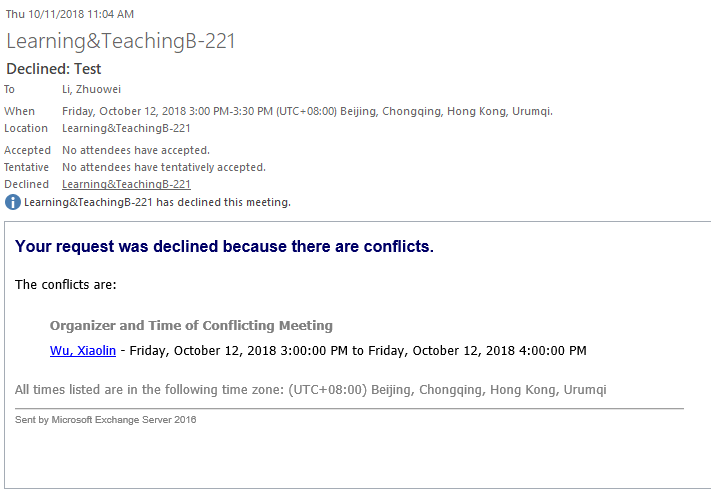
2. Otherwise, if the room booking fails, you will receive an email like this:
Reference
To learn more Outlook Calendar techniques, you can check this Microsoft official tutorial