
Install Office 365 on a Mac
Step 1 – Sign in and download Office
Open Office365.intl.zju.edu.cn. If you are not already signed in, select "Sign in".
Sign in using your INTL ID. If you have forgotten your password, you can reset it at this link.
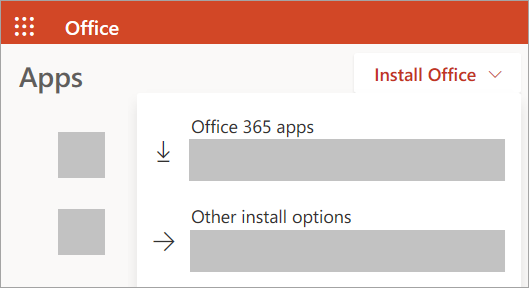
On the Office home page, select "Apps" > "Install apps".
Step 2 – Install Office
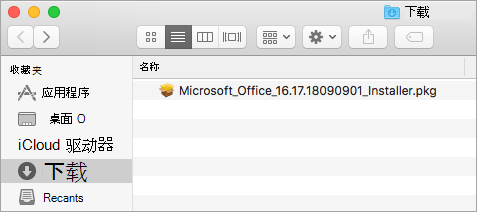
1. Once the download is complete, open Finder, go to "Downloads", and double-click the file named Microsoft_Office_Installer.pkg (the exact name may vary slightly).
Note:
If you see an error stating that Microsoft_Office_Installer.pkg cannot be opened because it is from an unidentified developer, wait 10 seconds, then move the downloaded file to your desktop. Press and hold the Control key and click the file to start the installer.
2. On the first installation screen, click "Continue" to begin the setup process.
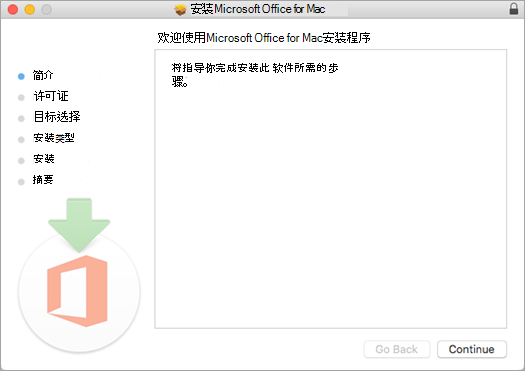
3. Review the software license agreement, then click "Continue".
4. Click "Agree" to accept the terms of the software license agreement.
5. Select how you want to install Office 365, then click "Continue".
6. Check the disk space requirements or change the installation location if needed, then click "Install".
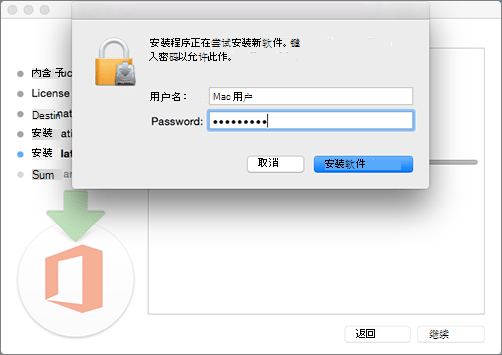
7. If prompted, enter your Mac's login password and click "Install Software" (this is the password you use to log in to your Mac).
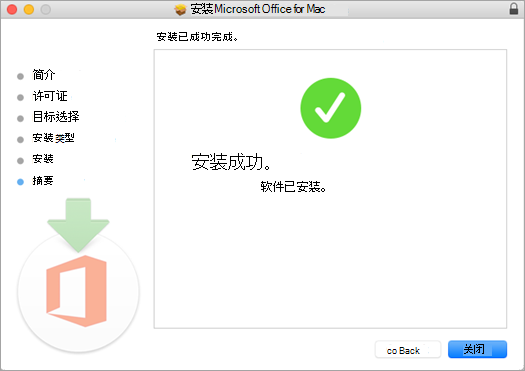
8. The software will begin installing. When the installation is complete, click "Close".
Step 3: Launch an Office for Mac app and begin activation
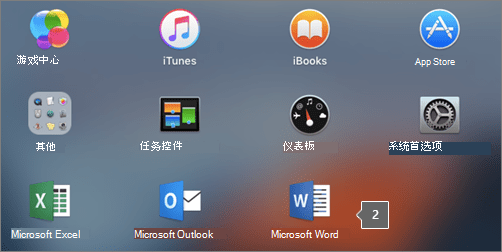
1. Click the Launchpad icon in the Dock to display all your apps.
2. Click the Microsoft Word icon in Launchpad.
3. When Word launches, the "What's New" window will open automatically. Click "Get Started" and sign in with your INTL ID. Office will then be activated.