Install Office 365 on a PC (in windows)
Step 1 – Sign in to download Office
Go to Office365.intl.zju.edu.cn. If you are not already signed in, select "Sign in".
Sign in using your INTL ID. If you have forgotten your password, you can reset it at this link.
On the Office home page, select "Apps" > "Install apps".
Note:
By default, the 64-bit version will be installed, unless it detects that you already have a 32-bit version of Office 365 (or a standalone app such as Project or Visio) installed. In that case, the 32-bit version of Office 365 will be installed instead.
To change from the 32-bit version to the 64-bit version, or vice versa, you need to uninstall Office 365 first (including any standalone apps you have, such as Project or Visio).
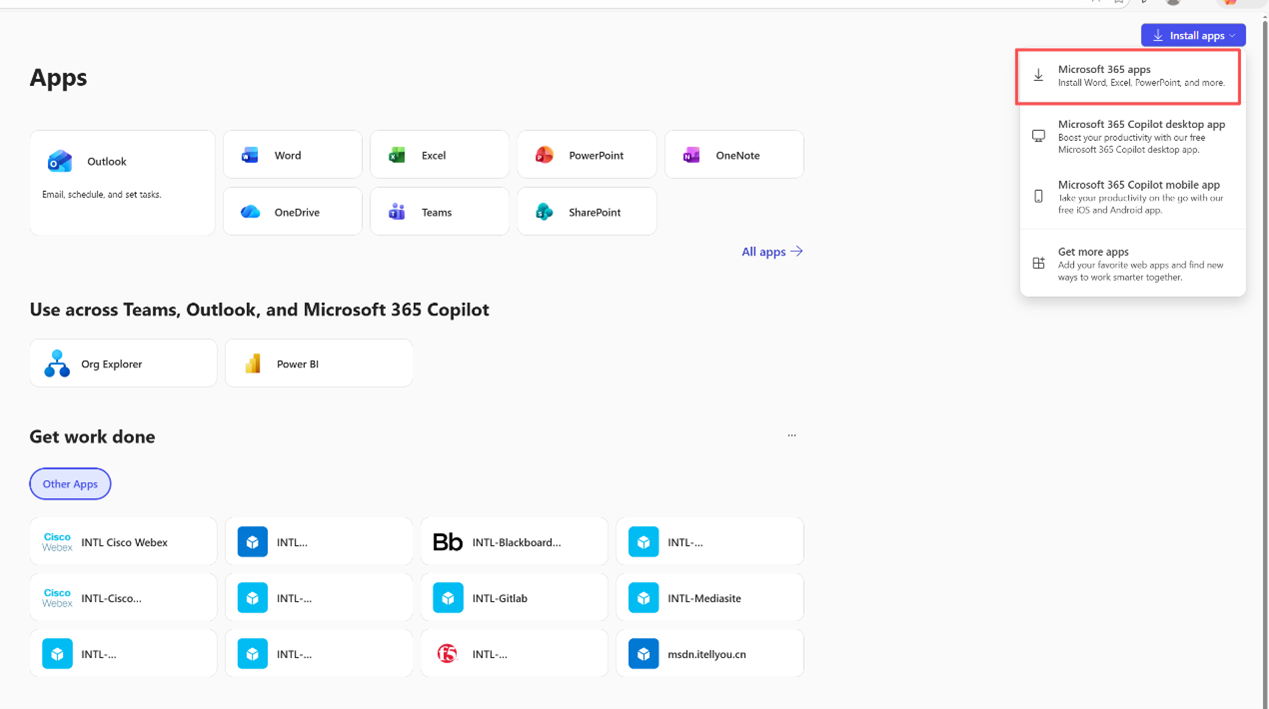
Step 2 – Install Office
Depending on your browser, select "Run" (in Microsoft Edge or Internet Explorer), "Setup" (in Chrome), or "Save File" (in Firefox).
If you see a User Account Control prompt asking "Do you want to allow this app to make changes to your device?", click "Yes".
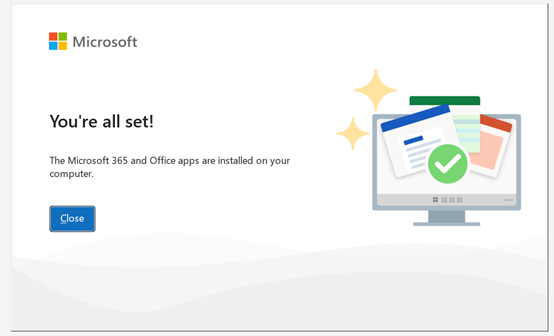
The installation will begin.When the installation is complete, you will see the message "You're all set! Office is now installed" and an animation will play showing you where to find your Office 365 apps on your computer. Select "Close".
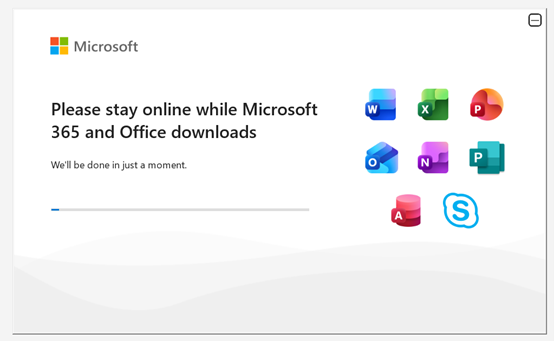
Step 3: Activate Office
Start using an Office application by opening any app, such as Word or Excel.
When the app opens, accept the license agreement. Office 365 will then be activated and ready to use.